How to write a resolution in MUN Command, step by step
Start a draft resolution
Create the draft and give it a name.
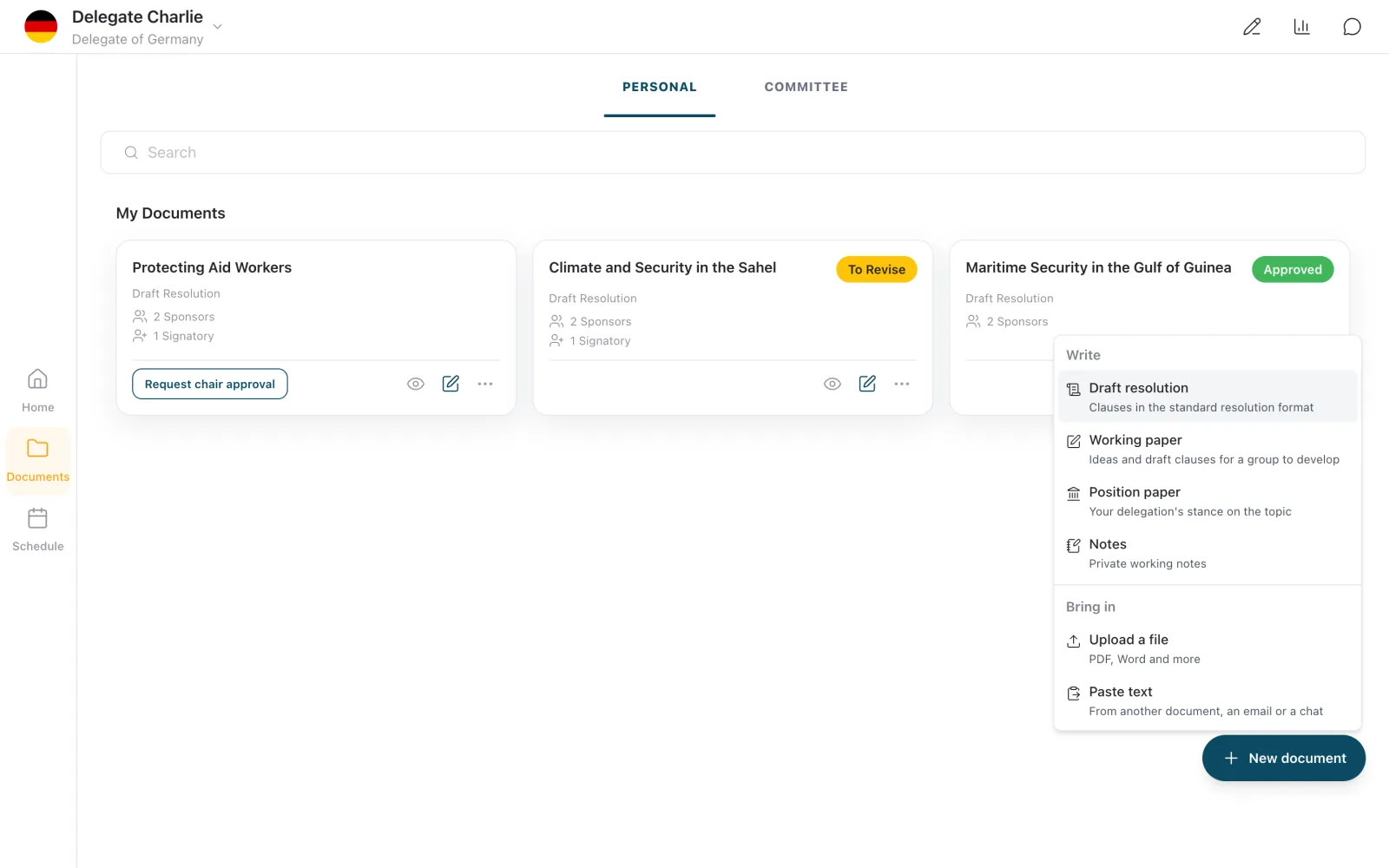
Open the “Personal” tab in “Documents”. Tap “New document”. On a phone it is a round “+”. Choose “Draft resolution”. The editor opens with the opening line and one empty clause in each section. Name your draft. Tap “Untitled resolution”, type a name and press Enter.
Bring in a draft you already wrote
Choose “Paste text” or “Upload a file”. Both are under “Bring in” in the “New document” menu. PDF, Word and plain text files can become clauses. Choose “Turn into a resolution”. MUN Command sorts your text into clauses for you to check. Fix each line marked “Worth checking” with “Set type”. If the opening line, such as “The Security Council,”, is marked, set it to “Header field”. Type a title if the import found none. Press “Confirm import”. Your draft opens with the sponsors and signatories the import recognised.
Write your clauses
The editor suggests opening phrases and numbers your operative clauses.
Opening phrases
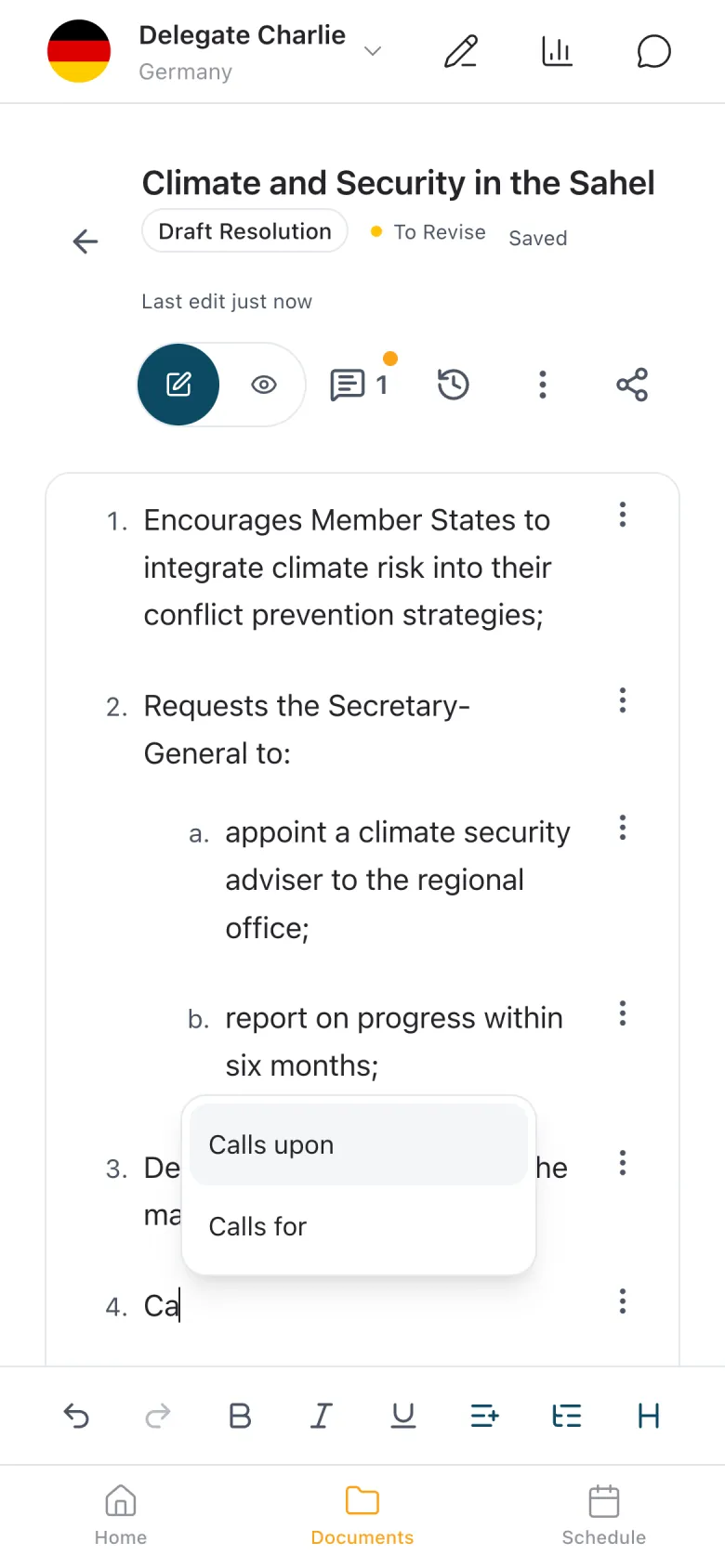
Click into an empty clause. A list of common opening phrases opens. Type the first letters of a phrase. The list shows only the phrases that match. Press Tab to take the top phrase. For another one, press Arrow Down, then Enter.
Clauses and sub-clauses
| Keys | What it does |
|---|---|
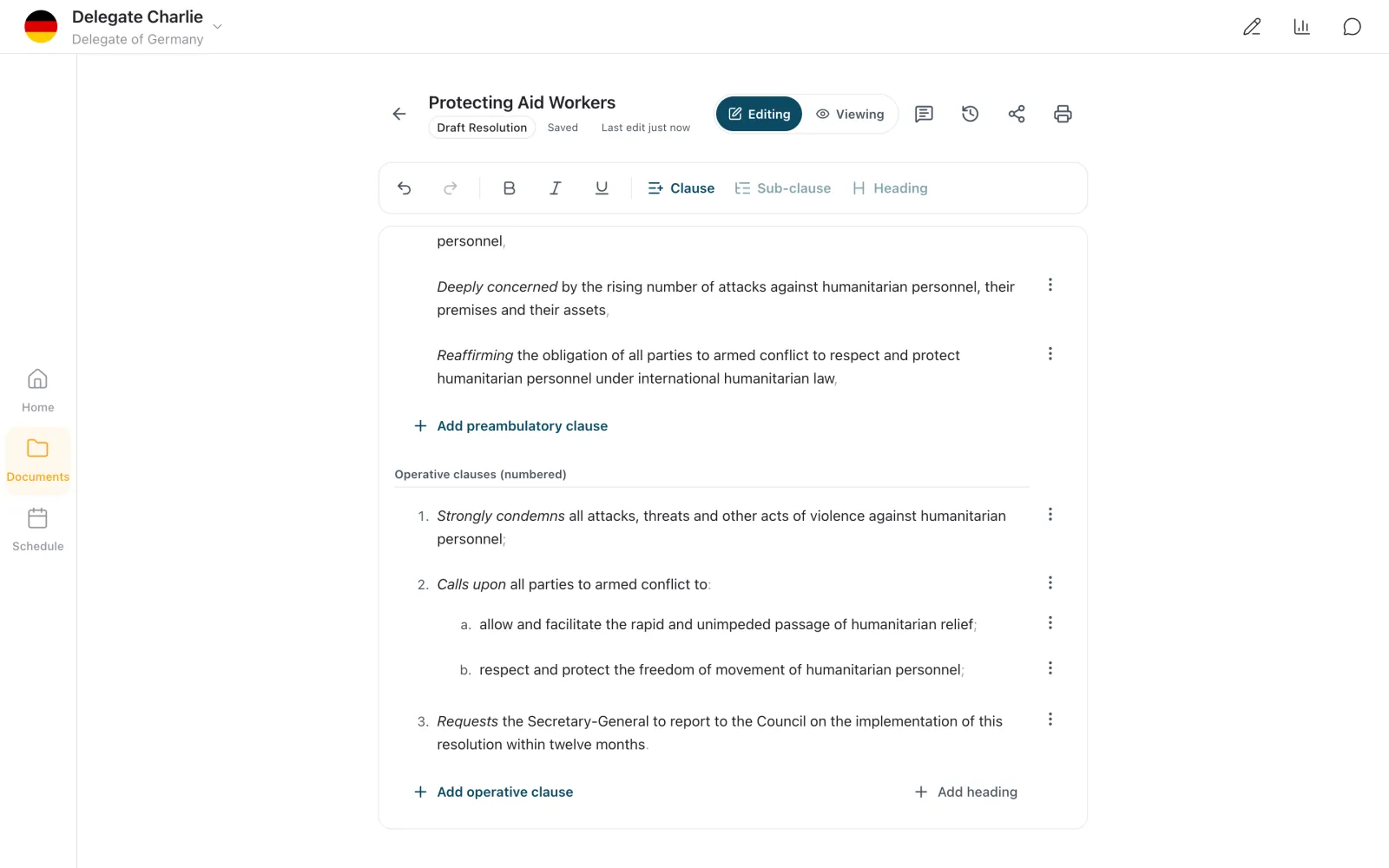
Make a sub-clause on a phone. Use “Indent” in the clause's ⋮ menu, and “Outdent” to move it back out. Move or delete a clause. Use the ⋮ beside it. Make a preambulatory clause operative. Cut it and paste it into the operative section.
Numbers and punctuation
Numbers. Preambulatory clauses get no number. Operative clauses get 1., 2. and so on, sub-clauses get a., b., and deeper levels get i. and then 1. End punctuation. Where a clause has no end mark, a grey one shows, and the PDF prints it. The editor never changes a mark you typed, so check your own.
Add sponsors and signatories
Name the countries behind your draft and choose who can edit.
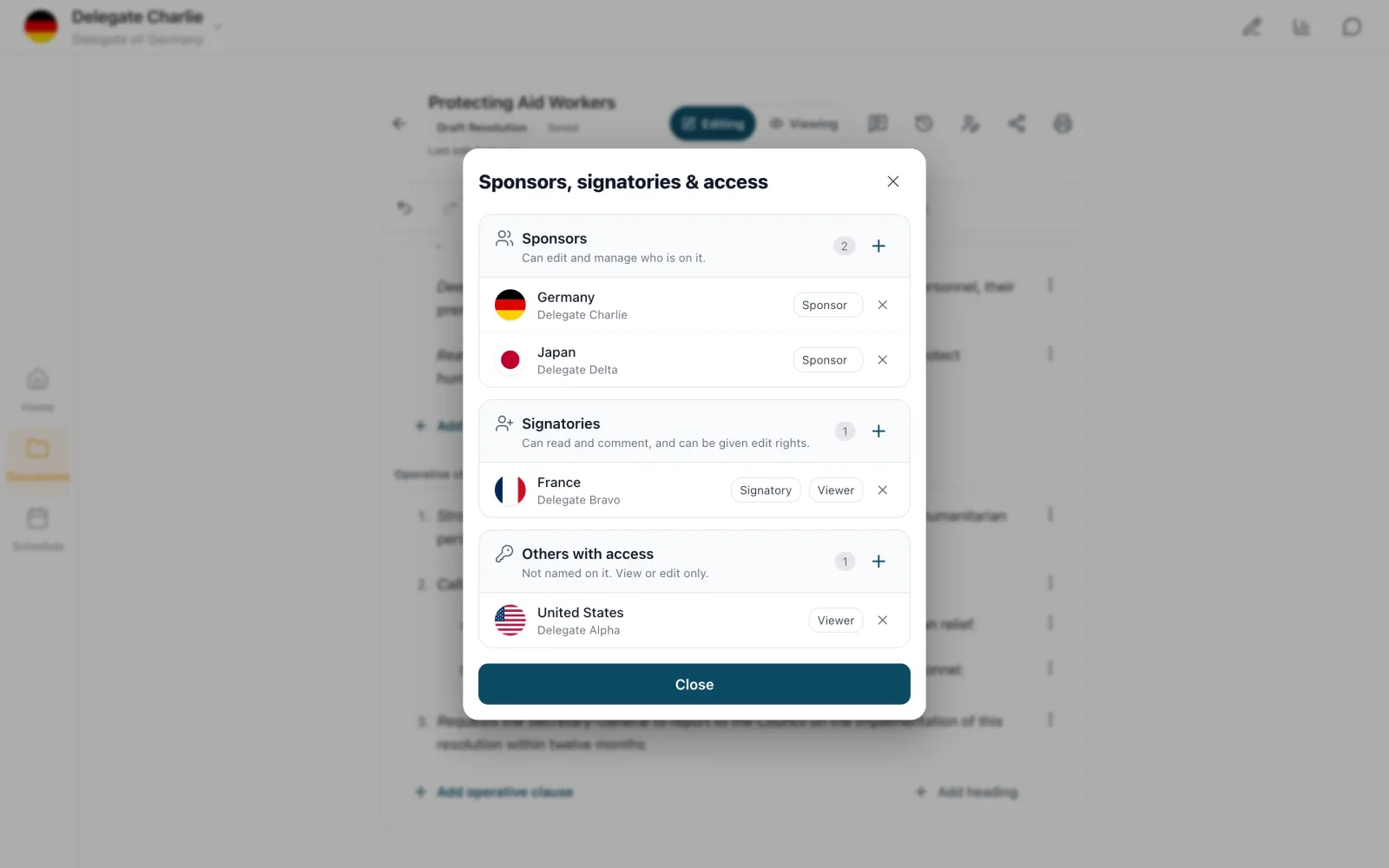
Open “Sponsors, signatories & access”. It is the people icon on the “Sponsors” band above your text. Press the “+” beside “Sponsors” or “Signatories”. Search for the country. Press “Add”, then “Done”. Each change saves at once. Set each signatory to “Viewer” or “Editor”. A new signatory starts as “Viewer”, which can read and comment but not edit.
Write with your co-sponsors
Type at the same time, then handle comments and suggestions.
Suggest a change
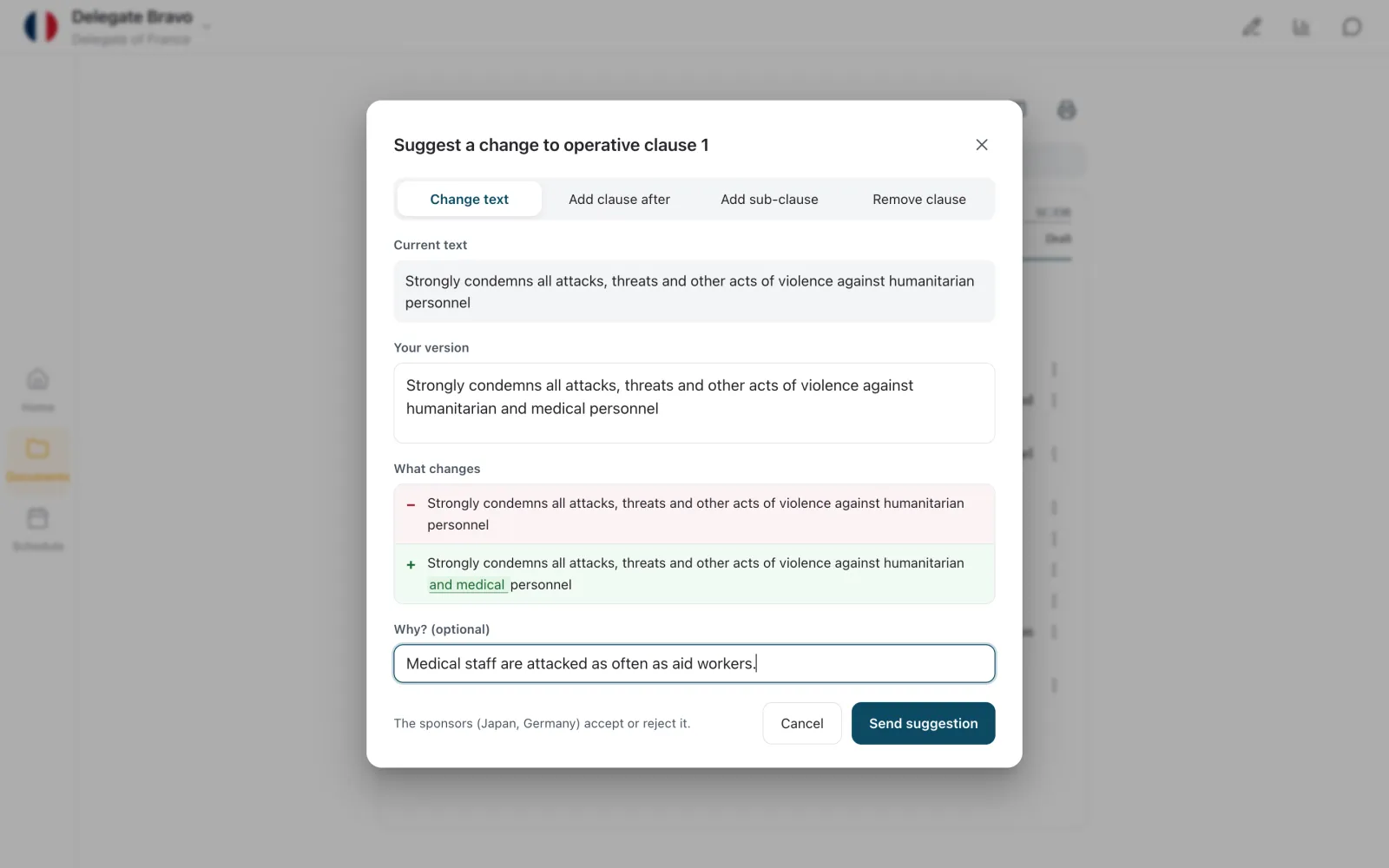
Choose “Suggest change…” in the clause's ⋮ menu. To leave a comment instead, choose “Comment on this clause”. Pick the kind of change. Choose a tab, such as “Change text” or “Remove clause”. Write your version. You can add a reason under “Why? (optional)”. Press “Send suggestion”. The sponsors accept or reject it, and you see a notice on screen when they do.
Accept or reject
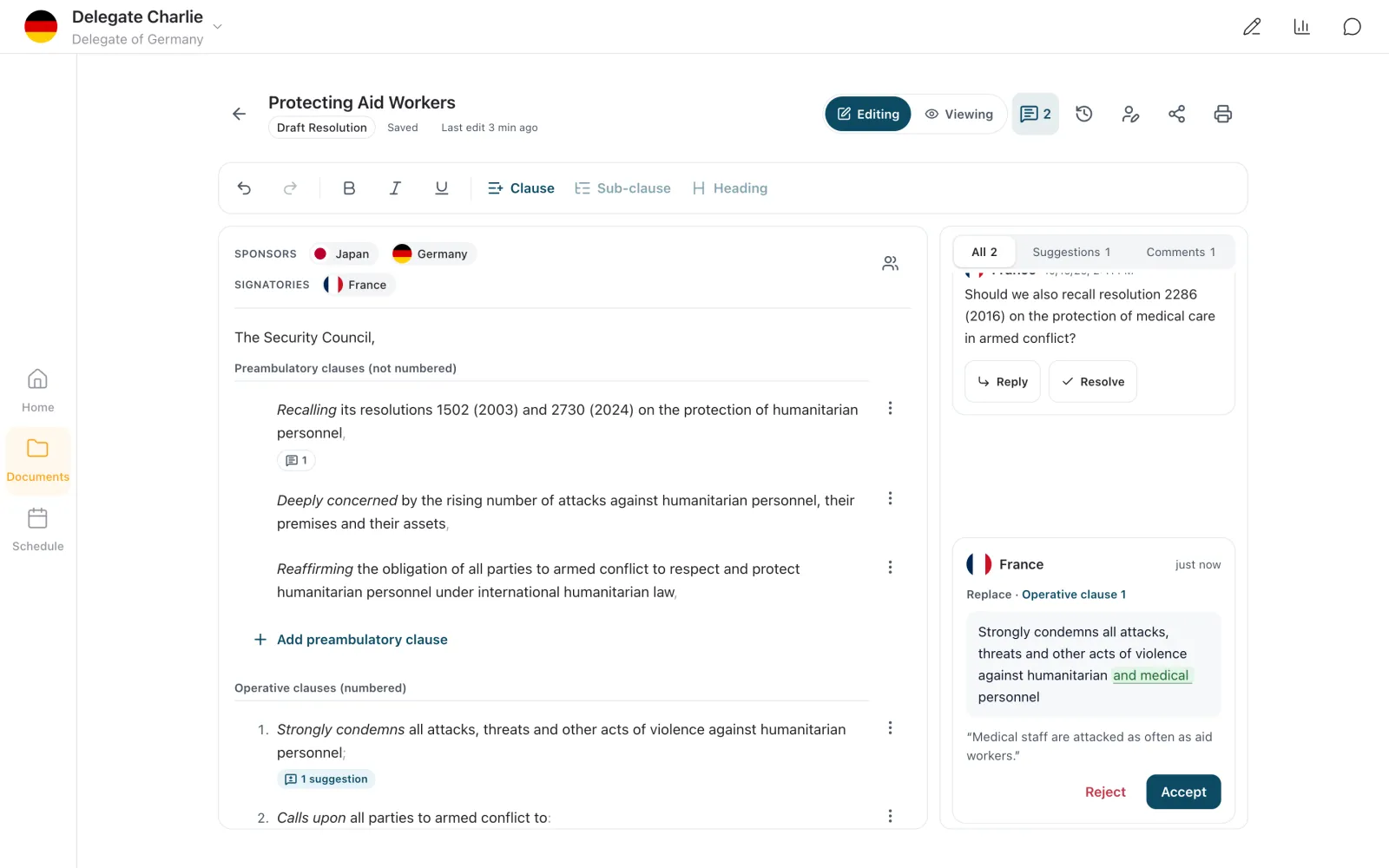
Open “Comments & suggestions”. It is the speech-bubble icon in the header. Choose “Accept” or “Reject” on each suggestion. “Accept” changes the text for everyone. Answer each comment. Choose “Reply”, or “Resolve” once the point is settled.
Send your draft to the chair
The chair can read your draft only after you send it.
Find your draft's card in “Documents”, on the “Personal” tab. Press “Request chair approval” on the card. The card now reads “Pending Approval”, and you can keep editing.
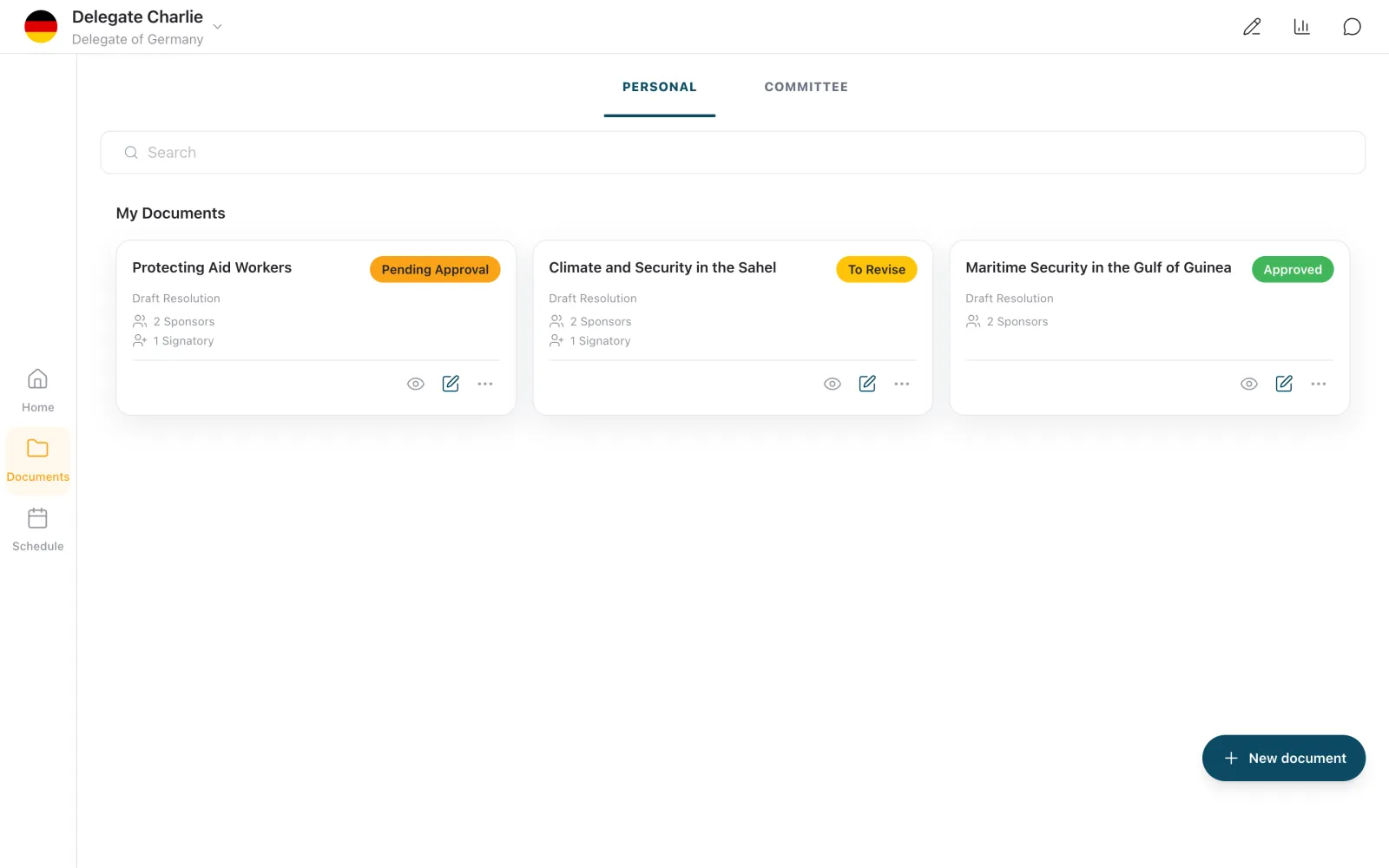
“Pending Approval”. The chair has your draft. “Approved”. The chair approved it. You can still edit it unless the chair locked it. “To Revise”. Read the chair's comment and fix the draft. Then choose “Withdraw” in the card's ⋮ menu and press “Request chair approval” again.
Introduce the draft and get its number
A passed motion or the chair introduces your draft.
Amend an introduced resolution
Change an introduced text one clause at a time.
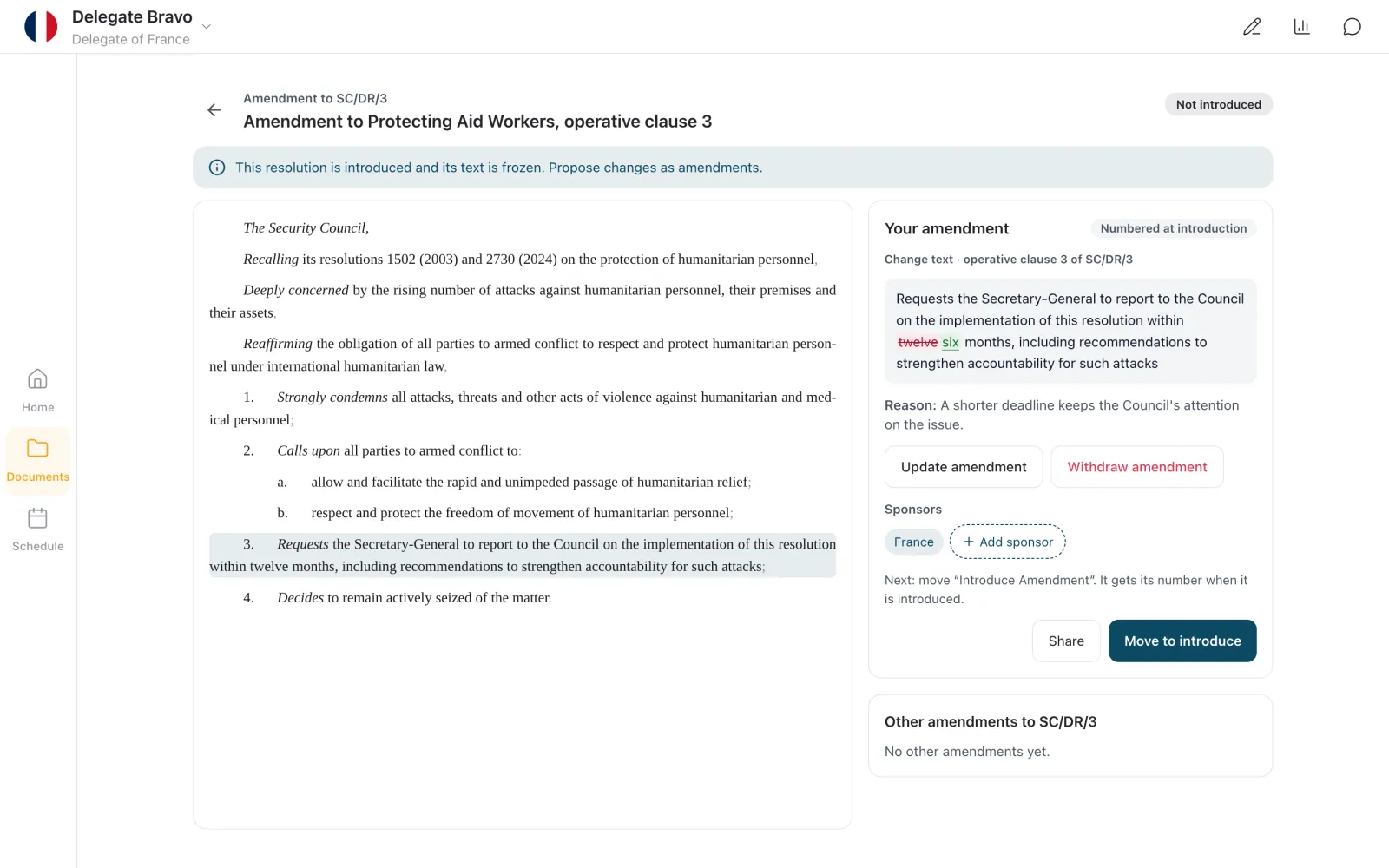
Press “Suggest an amendment”. It is in the notice above the introduced text. Pick the clause you want to change. An amendment changes one operative clause or sub-clause. Write the change. Use the same tabs as for a suggestion. Press “Draft amendment”. Your amendment page opens. Add your sponsors with “+ Add sponsor”. Press the next-step button. It reads “Move to introduce” or “Request chair approval”, depending on your committee.
Export a PDF or Word file
Save a print-ready PDF or download a Word file.
Wait until the header reads “Saved”. The PDF uses the last saved text. Press “Export”. It is in the editor header. On a phone, it is in the ⋮ menu. Choose “Save as PDF…” or “Download Word (.docx)”. The PDF opens your print dialog, where you choose Save as PDF. The Word file downloads at once.
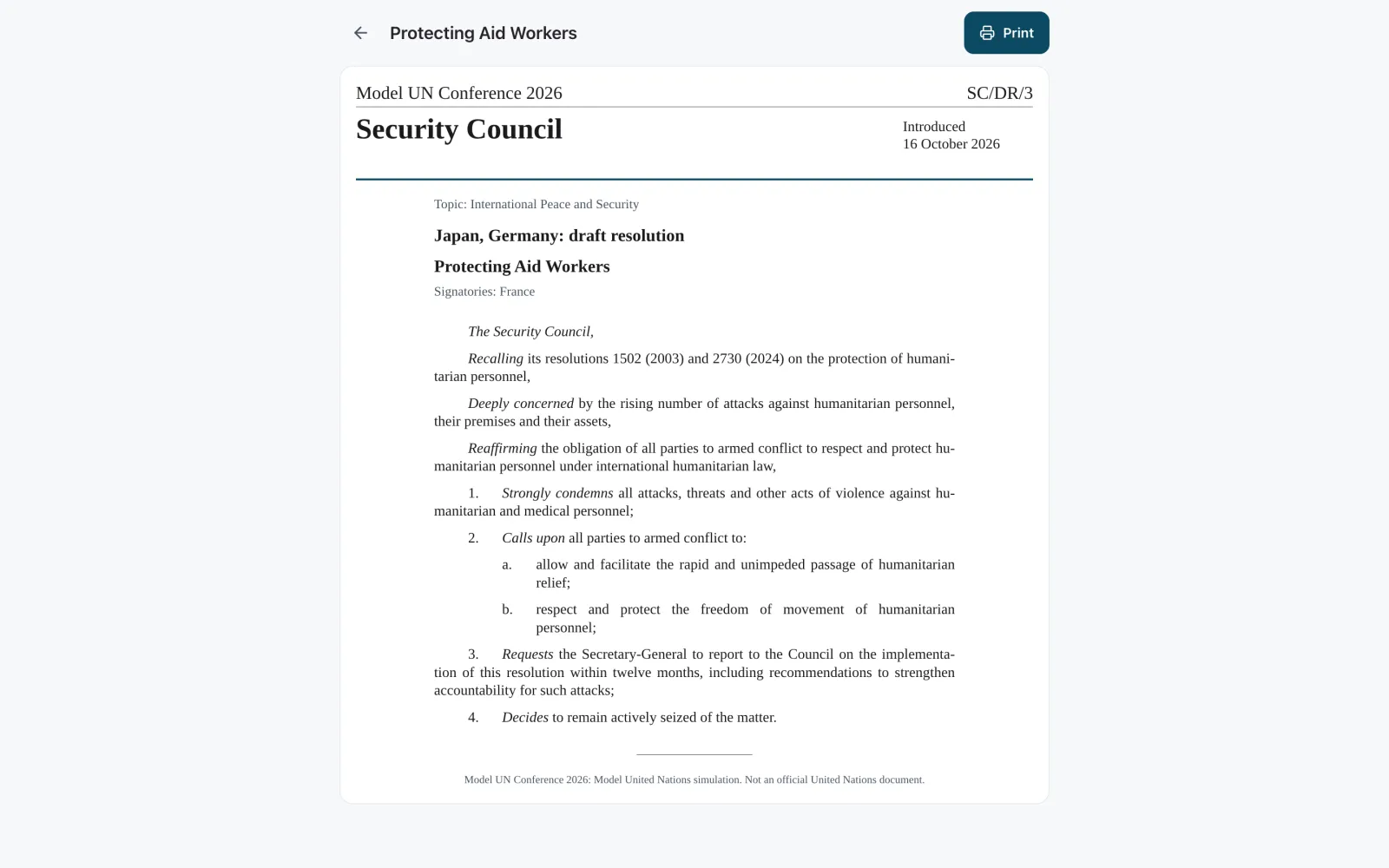
For chairs
Review and introduce drafts from the “Approval” tab.
Open the “Approval” tab. New requests wait under “Pending Approval”. Open a draft and read it. You can comment, or edit it yourself. Press “Approve” or “Request Revision”. With “Request Revision” you can add a note, and the sponsors get it as a comment. Choose “Introduce” in the draft's ⋮ menu. Set “Introduce as” to “Draft Resolution”. Press “Confirm”. The draft moves to the “Committee” tab and gets its number.
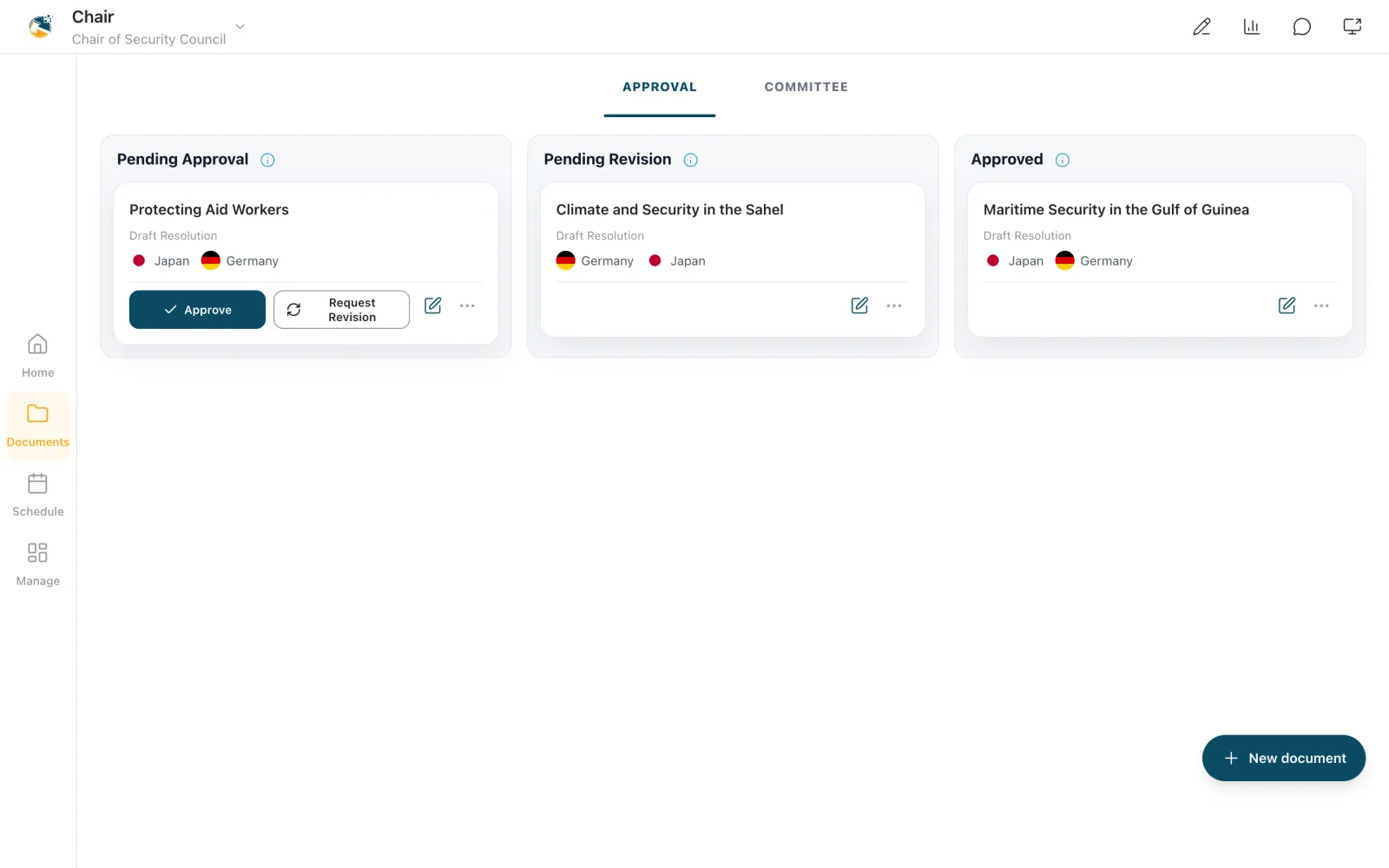
Stop delegates from editing or commenting. Use “Lock for delegates” or “Pause comments” in the ⋮ menu. Require your approval first. By default, a motion can introduce a draft you have not approved. Switch off the committee setting “Allow introduction of unapproved documents” to prevent this.